Send Laravel Email through Google Workspace SMTP
Send Laravel 11 to 13 mail through Google Workspace: app password, MAIL_SCHEME and port, an alias as sender, SPF and DKIM, and the errors I hit on the way.
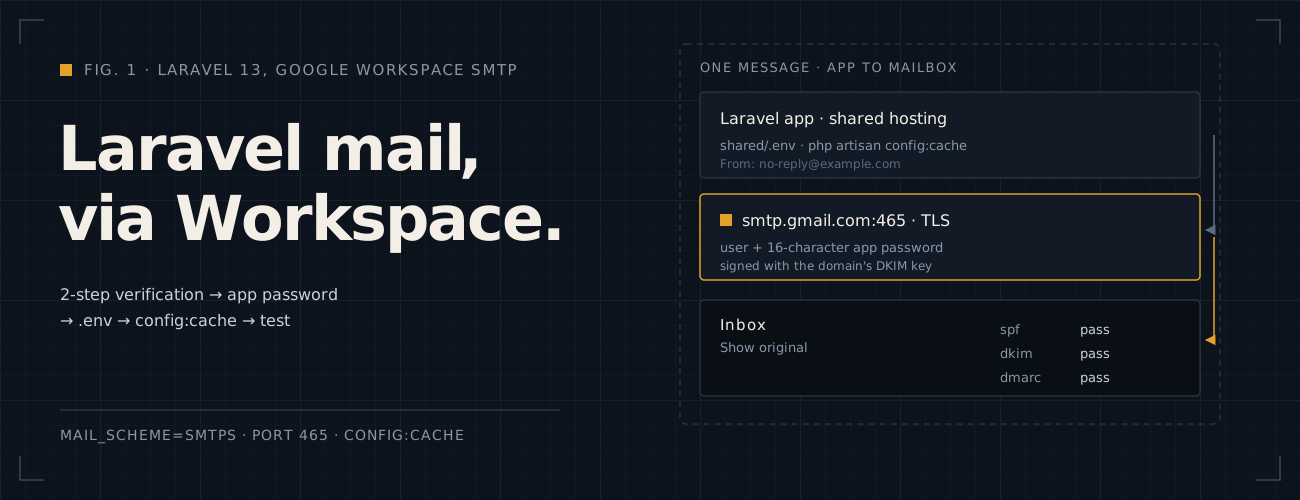
A Laravel 13 app I launched this week had to send real email: password links for new staff, contact form notifications, reminders and a weekly summary. The domain’s mail already ran on Google Workspace, so the simplest sender was a Workspace mailbox over Gmail’s SMTP server. No new package, no new mail provider.
It took less time than the mistakes around it: an app passwords page that said the setting did not exist, a port that did not match the scheme, and a cached config that kept the old values. This note is the setup that worked, and the questions I had to answer along the way.
TL;DR: turn on 2-Step Verification for the sending account, create an app password, put smtps, port 465, the
account and the app password in .env, rebuild the config cache, and send a test from tinker.
This applies if:
- Laravel: 11, 12 or 13. They configure SMTP with
MAIL_SCHEME; older guides useMAIL_ENCRYPTION, which these versions no longer read, even if an oldconfig/mail.phpstill has the key. - Mail: the domain’s mailboxes are on Google Workspace, and you are, or can reach, a Workspace admin.
- Hosting: any server that can open outbound connections to
smtp.gmail.comon port 465 or 587. Mine was Hostinger shared hosting behind Cloudflare. - Volume: transactional mail from one app. Workspace lets one account send 2,000 messages a day (500 on a trial), so this is not for newsletters.
Step 1: Pick the account that sends
Use a mailbox that exists only for the app, such as no-reply@example.com, not a person’s account. The SMTP login,
its app password, bounces and the “Sent” folder all belong to that account. If they belong to a colleague, the app
stops sending the day their password changes or their account is suspended.
A dedicated mailbox needs its own Workspace licence. To save one, you can send as an alias of an existing account instead; see Can I send from an alternate email address? below.
Step 2: Turn on 2-Step Verification
Since March 14, 2025, Google no longer accepts an account’s normal password over SMTP, when it switched off “less secure apps” for every account. It needs an app password, and app passwords only exist on accounts with 2-Step Verification (2SV) turned on.
As of October 2026, the settings are here:
- As a Workspace super admin: in the Admin console (opens in a new tab), go to Security → Authentication → 2-Step Verification. Tick Allow users to turn on 2-Step Verification, and under Methods choose Any. “Only security key” blocks app passwords.
- As the sending account: sign in to that account and turn on 2SV at myaccount.google.com/signinoptions/twosv (opens in a new tab), with a phone or an authenticator app.
The admin setting can take a while to reach the account, so try again later if step 2 still refuses.
Step 3: Create an app password
Still signed in as the sending account, open myaccount.google.com/apppasswords (opens in a new tab),
enter a name such as laravel, and create it. Google shows 16 letters in four groups. Copy them without the
spaces: that is the SMTP password.
The page shows the password once. It belongs in the server’s .env only, never in the repository, a ticket or a chat.
If it leaks, delete it on the same page and create a new one; the account’s real password is not affected.
If the page says “The setting you are looking for is not available for your account.”, see the question below. I got exactly that the first time.
Step 4: Set up SPF, DKIM and DMARC
Without these, Gmail itself sends the mail fine, but the receiving side has no proof it came from your domain, and reminders land in spam. My DNS is on Cloudflare, where TXT records are always DNS only, so there is no proxy setting to worry about.
| Record | Name | Value |
|---|---|---|
| SPF | example.com (TXT) |
v=spf1 include:_spf.google.com ~all |
| DKIM | google._domainkey (TXT) |
Admin console → Apps → Google Workspace → Gmail → Authenticate email |
| DMARC | _dmarc (TXT) |
v=DMARC1; p=none; rua=mailto:dmarc@example.com |
- SPF: a domain can only have one SPF record. If one exists for another sender, add
include:_spf.google.comto it instead of adding a second. - DKIM: generate the key in the Admin console, with a 2048-bit key and the default
googleselector, add the TXT record it shows, then click Start authentication. Google says DKIM can take up to 48 hours to start working. - DMARC: start with
p=noneto collect reports, and tighten it toquarantineonce SPF and DKIM pass.
Step 5: Configure Laravel
In the server’s .env:
MAIL_MAILER=smtpMAIL_SCHEME=smtpsMAIL_HOST=smtp.gmail.comMAIL_PORT=465MAIL_USERNAME=no-reply@example.comMAIL_PASSWORD='abcdefghijklmnop'MAIL_FROM_ADDRESS=no-reply@example.comMAIL_FROM_NAME='Example App'Gmail offers two ways to start TLS, and both are encrypted:
MAIL_SCHEME |
MAIL_PORT |
How TLS starts |
|---|---|---|
smtps |
465 |
TLS from the first byte (implicit TLS) |
smtp |
587 |
Plain connection, upgraded with STARTTLS at once |
I use 465. If the host blocks one port, try the other pair. One combination fails: smtps with port 587, because
smtps starts TLS straight away while port 587 expects plain SMTP first. That gives the SSL error in
the errors section. Laravel is forgiving the other way: with smtp, or with MAIL_SCHEME left
empty, its mailer still uses TLS from the start on port 465.
MAIL_FROM_ADDRESS must be the account itself or an alias it may send as. Anything else, and Gmail quietly replaces
the sender with the account’s address.
Step 6: Rebuild the config cache
Production Laravel apps usually run with a cached config (php artisan config:cache), and then .env is not read
at all. Until you rebuild the cache, the app keeps sending with the old settings, or with none. After every .env
change, from the app’s folder:
php artisan config:cacheThen check what Laravel will really use. The values below are the note’s examples, and the dot leaders are shorter than in a real terminal.
The SMTP settings, without the password line:
php artisan config:show mail.mailers.smtp | grep -v password mail.mailers.smtp .............................. transport ................................. smtp scheme ................................... smtps url ....................................... null host ............................ smtp.gmail.com port ....................................... 465 username .................. no-reply@example.com timeout ................................... null local_domain ....................... example.comThe sender:
php artisan config:show mail.from mail.from ...................................... address ................... no-reply@example.com name ................................ Example AppIf scheme, port or address still shows the old value, the cache was not rebuilt, or it was rebuilt in another
folder (see below). local_domain is the name Laravel greets the server with:
MAIL_EHLO_DOMAIN if set, otherwise the host in APP_URL, so on a live server it shows your domain.
Step 7: Send a test
php artisan tinker --execute='Illuminate\Support\Facades\Mail::raw("Mail test", fn ($m) => $m->to("you@example.com")->subject("Laravel mail test")); echo "sent\n";'sent with no exception means Gmail accepted the message. In Gmail, open it, choose ⋮ → Show original, and check
that SPF, DKIM and DMARC all say PASS.
The errors I hit
Laravel writes these to storage/logs/laravel.log when the app catches the failure and calls report(), which logs
at error level. To list the latest errors without their stack traces:
grep -E '^\[[0-9]{4}-' storage/logs/laravel.log | tail -n 10 | cut -c1-400The log entries can contain recipients and message text, so clean them before you paste them anywhere.
An email must have a "From" or a "Sender" header.
MAIL_FROM_ADDRESS was empty: my first .env still had template text there. Set it, then rebuild the cache.
Connection could not be established with host "ssl://smtp.gmail.com:587": stream_socket_client(): SSL operation failed with code 1.
I had MAIL_SCHEME=smtps with port 587. smtps opens TLS straight away, but port 587 expects plain SMTP first. Use
smtps with 465, or smtp with 587.
Expected response code "235" but got code "535", with message "535-5.7.8 Username and Password not accepted.
(I did not hit this one, but it is the usual next error)
The password is the account’s normal password, the app password still has its spaces, or the app password was
revoked, for example after the account’s password changed. Create a new one.
Connection timed out or refused The host blocks that outbound port. Try the other scheme and port pair. If both fail, ask the hosting provider.
Questions I ran into
Why does the app passwords page say the setting is not available?
“The setting you are looking for is not available for your account.” almost always means 2-Step Verification is not on for the account you are signed in with. Google hides the page until it is. Check, in this order:
- The right account: the avatar at the top right must be the sending account, not your personal Gmail or another staff account. An incognito window signed in to that account only avoids the mix-up.
- 2SV is on for that account (step 2).
- The admin allows it: 2SV allowed, methods set to Any, not “Only security key”.
- The account’s organisational unit or group: the 2SV policy can be set per organisational unit and per configuration group, and a group’s setting overrides the unit’s. If the account sits in a stricter unit or group than the one you changed, that policy wins. Check it in Directory → Users.
- Advanced Protection: accounts enrolled in it cannot create app passwords. Use a different sender.
Google also offers an SMTP relay (Admin console → Apps → Google Workspace → Gmail → Routing → SMTP relay service). With “Require SMTP Authentication” it still logs in with a Workspace account’s address and password, so it does not get around the 2SV question. Without it, it allows by IP address, and on shared hosting that IP is shared with other customers, who could then send as your domain. Fixing 2SV is the better route.
Can I send from an alternate email address?
Yes, if Gmail knows the account may send as it. Otherwise Gmail rewrites the sender to the account’s primary address, without an error.
-
Add the alias: Admin console → Directory → Users → the user → User information → Alternate email addresses, for example
no-reply@example.com. -
Allow sending as it: signed in to Gmail as that user, ⚙ → See all settings → Accounts → Send mail as → Add another email address. Keep Treat as an alias ticked. An alias of the same account is usually accepted without a confirmation email.
-
In
.env: the login stays the primary account, and only the sender changes:MAIL_USERNAME=primary.user@example.comMAIL_PASSWORD='the primary account app password'MAIL_FROM_ADDRESS=no-reply@example.com
It saves a licence, but the app now depends on that person’s account, and replies and bounces to no-reply@ arrive in
their mailbox. An alias on the same domain is covered by the domain’s SPF and DKIM. An alias on a second domain needs
DKIM set up for that domain too.
In which folder do I run config:cache?
In the folder of the release that serves the site, the one that holds artisan. My deployments keep .env in a
shared folder and point a current symlink at the live release:
cd /home/user/domains/example.com/app/current && php artisan config:cacheThe .env lives in app/shared/.env, but the cache is written into the release’s own bootstrap/cache/config.php,
so run it in current. Each new release builds its own cache during deployment.
Why not use MAIL_MAILER=log to read the email?
Before SMTP worked, I needed the set-password link for a new staff account and thought of logging the mail instead of
sending it. Two problems: the log mailer writes at debug level, so with production’s LOG_LEVEL=warning nothing
appears, and if it did, the password link would sit in the log file.
For a Laravel password-reset link, create it directly over SSH instead. It prints the same link the email would
contain. Like the email flow, it saves only a hashed copy of the token in the password_reset_tokens table, and
nothing goes to the log:
php artisan tinker --execute='$u = App\Models\User::where("email", "person@example.com")->firstOrFail(); echo route("password.reset", ["token" => Illuminate\Support\Facades\Password::broker()->createToken($u), "email" => $u->email]), PHP_EOL;'The link works once and expires with the broker’s setting, 60 minutes by default. Running the command again replaces
the earlier link. Send it to the person privately: anyone with the link can set the password. If your app names its
reset route differently, change password.reset.
When it works
Once the test arrived with SPF, DKIM and DMARC passing, the rest was the app’s own business. I gave every email one branded layout with the logo embedded as a PNG, because email clients block SVG and data URIs.
Sending through a person-sized mailbox has limits: Google caps the messages one account can send a day, and the account’s security settings are now part of your deployment. When an app outgrows that, a transactional mail service on a subdomain is the next step. Until then, one mailbox, one app password and one cached config are enough.
Sources
- Google: Sign in with app passwords (opens in a new tab), Transition from less secure apps to OAuth (opens in a new tab), Deploy 2-Step Verification (opens in a new tab), Set up DKIM (opens in a new tab), SMTP relay (opens in a new tab) and Gmail sending limits in Google Workspace (opens in a new tab)
- Laravel: Mail configuration (opens in a new tab) and Configuration caching (opens in a new tab)