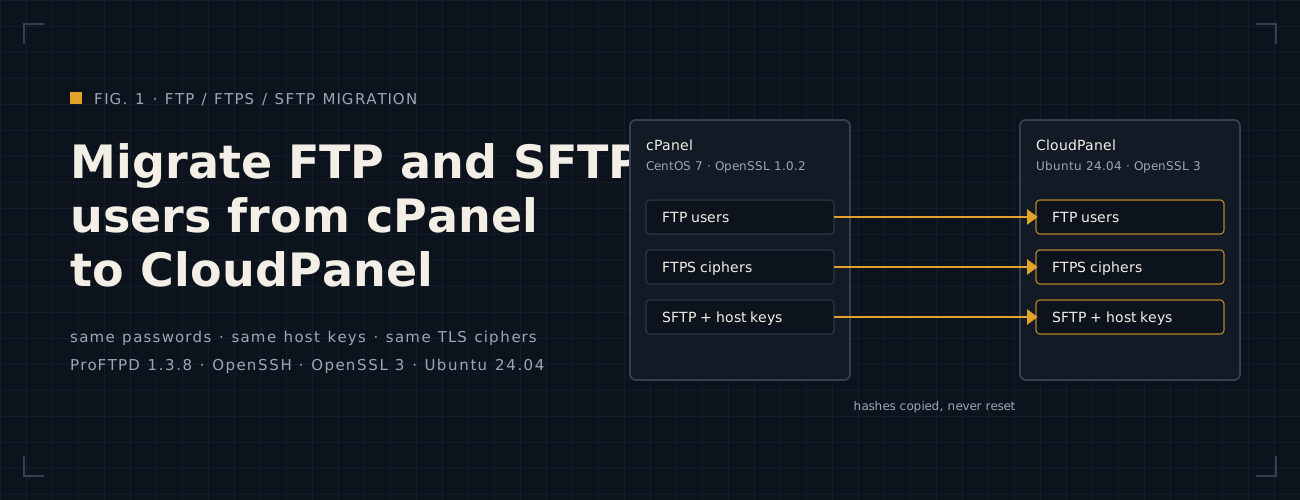
Migrate FTP and SFTP Users from cPanel to CloudPanel
Move cPanel FTP, FTPS and SFTP accounts to CloudPanel with the same passwords, folders and host keys, and fix FTPS clients that fail the TLS handshake.
Some FTP clients are automated scripts that you can’t ask anyone to change. When you move them from cPanel to
CloudPanel, they have to keep working with the same username, password, folder and server key. ProFTPD can do that,
because its mod_auth_file (opens in a new tab) reads the same passwd-style user
file that cPanel’s ProFTPD uses, password hashes included. So nobody has to reset a password.
I moved about 150 FTP accounts and 7 SFTP accounts from cPanel on CentOS 7 to CloudPanel on Ubuntu 24.04. The clients that connected after the switch needed no change on their side, except one client’s automated FTPS download, most likely a Java program. It failed the TLS handshake for six days before I found why. That gotcha is in this note too. For the database side of a cPanel move, see replicating MySQL from cPanel to CloudPanel.
TL;DR: Copy cPanel’s ProFTPD user file with its hashes, replicate its SFTP chroot and bind-mount permissions, give
CloudPanel’s ProFTPD cPanel’s own TLSCipherSuite plus TLSECDHCurve prime256v1, and swap the two servers’ IP
addresses with cPanel’s SSH host keys.
This applies if:
- Source: cPanel with ProFTPD as its FTP server, on CentOS 7 (OpenSSL 1.0.2), with root SSH access.
- Target: CloudPanel on Ubuntu 24.04, which ships ProFTPD 1.3.8 and OpenSSL 3, with root SSH access.
- Clients: people or scripts that log in with FTP, FTPS (FTP with
AUTH TLS) or SFTP, and that you can’t ask to change anything. - Network: CloudPanel can reach cPanel over SSH with a key, and you have console access to both VMs for the IP swap.
At a glance
All addresses are documentation examples (RFC 5737 (opens in a new tab)), and the names are made
up: cPanel account cpuser, CloudPanel site user siteuser, domain example.com.
| Setting | cPanel (source) | CloudPanel (target) |
|---|---|---|
| Address | 203.0.113.10 |
203.0.113.20 (becomes 203.0.113.10 at cutover) |
| FTP user file | /etc/proftpd/passwd.vhosts |
/etc/proftpd/passwd.vhosts |
| FTP home folders | /home/cpuser/public_html/... |
/home/siteuser/htdocs/example.com/... |
| ProFTPD config | /etc/proftpd.conf |
/etc/proftpd/proftpd.conf, conf.d/*.conf |
| FTPS certificate | /etc/ftpd-rsa.pem, /etc/ftpd-rsa-key.pem |
/etc/proftpd/ssl/ (certificate, key, chain) |
| OpenSSL | 1.0.2 | 3.0 |
| SFTP users | system users in /etc/shadow |
system users in /etc/shadow, jailed ones chrooted |
| Transfer log | /etc/apache2/logs/domlogs/ftpxferlog |
/var/log/proftpd/xferlog |
cPanel’s user file lists every account twice, as user@example.com and as user+example.com. Both lines move across,
so either form keeps working.
Which clients do I have to move, and how do they connect?
Read cPanel’s transfer log before you plan anything. The fourth field from the end says ftp or ftps, so you know which
clients use TLS. zcat -f reads the rotated logs too, and NF > 5 skips short lines that would stop awk:
zcat -f /etc/apache2/logs/domlogs/ftpxferlog* | awk 'NF > 5 {print $(NF-4), $(NF-3)}' | sort | uniq -c | sort -rn | head -n 20Each line shows a count, an account and its protocol. These are some of the lines from my host, with the names changed:
284315 client1@example.com ftps 9934 cpuser ftps 1453 client4@example.com ftps 1175 client5@example.com ftp 1166 client3@example.com ftp 1160 client2@example.com ftps 788 client6@example.com ftps 62 client6@example.com ftpclient2 is the daily FTPS download that later failed after the move. One account can show up with both protocols, like client6, so plain
FTP has to keep working next to FTPS.
Also inspect cPanel’s active bind mounts and SFTP chroot rules before copying files. On my host, shared directories were bind-mounted read-only under the FTP web root and read-write inside the SFTP jail.
sed -n '/^Match/,$p' /etc/ssh/sshd_config | grep -vE '^\s*(#|$)'grep -E 'public_html|sftp' /proc/self/mountinfo | awk '{print $4, $5, $6}'Before you start
- Keep cPanel running until every regular client has connected to CloudPanel at least once. You need its logs and files to compare, and keeping it on a spare IP lets you roll back in minutes.
- Back up
/etc/proftpd,/etc/ssh,/etc/shadowand/etc/netplanon CloudPanel, and print where the backup went. - Disable
cloud-initnetwork management and installarpingon CloudPanel before swapping IPs. Otherwisecloud-initcan restore the old IP at reboot, and upstream routers cache the old server’s MAC address. - Open the ports on CloudPanel: 21 for FTP and FTPS, 22 for SFTP, and the passive range for FTP data.
mkdir -p /root/migration && chmod 700 /root/migrationcp -a /etc/proftpd /etc/ssh /etc/shadow /etc/netplan /root/migration/ls -la /root/migrationecho 'network: {config: disabled}' > /etc/cloud/cloud.cfg.d/99-disable-network-config.cfgapt-get -s install iputils-arping | grep -E '^(Inst|Remv)'ufw allow 20:21/tcp && ufw allow 49152:65534/tcp && ufw statusIf apt-get -s shows only Inst iputils-arping and no removals, install it so you can send gratuitous ARP packets at
cutover:
apt-get install -y iputils-arping && which arpingStep 1: Copy the FTP users with their password hashes
Writes ProFTPD's user file
Each line of cPanel’s user file is in passwd format: name, password hash, user ID, group ID, comment, home folder and shell. Copy it as it is, then change three things for CloudPanel: the user ID, the group ID and the start of each home folder. Never retype or regenerate a hash. The hash is what lets the old password keep working.
On CloudPanel, set the names once. These four lines are the only ones to change:
CP=203.0.113.10SRC=/home/cpuser/public_htmlDST=/home/siteuser/htdocs/example.comSITEUSER=siteuserThen fetch the file, rewrite it, and check it before you install it:
U=$(id -u "$SITEUSER"); G=$(id -g "$SITEUSER")scp "root@${CP}:/etc/proftpd/passwd.vhosts" /root/migration/passwd.vhosts.cpanelawk -F: -v OFS=: -v u="$U" -v g="$G" -v src="$SRC" -v dst="$DST" ' { $3 = u; $4 = g; if (index($6, src) == 1) $6 = dst substr($6, length(src) + 1); print }' \ /root/migration/passwd.vhosts.cpanel > /root/migration/passwd.vhosts.newwc -l /root/migration/passwd.vhosts.cpanel /root/migration/passwd.vhosts.newcut -d: -f1,3,4,6 /root/migration/passwd.vhosts.new | head -n 5install -m 440 -o proftpd -g root /root/migration/passwd.vhosts.new /etc/proftpd/passwd.vhostsBoth files must have the same number of lines, and every home folder must start with the CloudPanel path. Then check which hash types the file holds, without printing the hashes:
cut -d: -f2 /etc/proftpd/passwd.vhosts | cut -c1-3 | sort | uniq -cOn my host all 303 lines started with $6$, SHA-512 hashes that Ubuntu’s crypt reads as they are.
On my host, the user file was built before I deleted and recreated the CloudPanel site. The new site user got new
IDs, so every FTP line still carried the old ones and no account could upload. Take the IDs from id right before
you install the file, never from the cPanel file or from an earlier run.
Step 2: Point ProFTPD at the user file
Adds a ProFTPD config file and edits proftpd.conf
ProFTPD refuses users whose shell isn’t in /etc/shells. cPanel’s virtual FTP users can have a shell that Ubuntu
doesn’t list, so check field 7 of the user file against it:
cut -d: -f7 /etc/proftpd/passwd.vhosts | sort -u | while read -r sh; do grep -qxF "$sh" /etc/shells && echo "$sh: listed" || echo "$sh: NOT in /etc/shells"doneOn my host all 303 lines had /bin/ftpsh, which isn’t in Ubuntu’s /etc/shells. Add the user file, and turn the
shell check off:
RequireValidShell offAuthOrder mod_auth_file.cAuthUserFile /etc/proftpd/passwd.vhostsDefaultRoot ~AuthOrder mod_auth_file.cProFTPD checks FTP logins against this file only.DefaultRoot ~Locks every FTP user into their home folder. CloudPanel’sproftpd.confhasDefaultRoot ~ ftp-user, which covers only theftp-usergroup, and cPanel’s users aren’t in it.
CloudPanel keeps the other settings in /etc/proftpd/proftpd.conf. Read them before you change anything, and compare
them with the same lines in cPanel’s /etc/proftpd.conf:
grep -nE '^\s*(Umask|PassivePorts|MasqueradeAddress|DefaultRoot|MaxInstances)' /etc/proftpd/proftpd.confUmaskOn my host CloudPanel hadUmask 0002 0002, and cPanel’s uploads were mode 644. I setUmask 022so new uploads get the same permissions as before.PassivePortsMust match the range cPanel used and the firewall rule. On my host that was49152 65534.MasqueradeAddressThe public address ProFTPD gives clients for passive data connections. It still holds CloudPanel’s address. Change it in Step 7, when you swap IPs.MaxInstancesCloudPanel hadMaxInstances 30, and cPanel had no limit. I setMaxInstances noneto match cPanel.
cp -a /etc/proftpd/proftpd.conf /root/migration/proftpd.conf.before_umasksed -i -E 's/^\s*Umask\s+0002\s+0002/Umask 022/' /etc/proftpd/proftpd.confsed -i -E 's/^\s*MaxInstances\s+30/MaxInstances none/' /etc/proftpd/proftpd.confgrep -nE '^\s*(Umask|MaxInstances)' /etc/proftpd/proftpd.confTest the config before you reload, so a typo can’t stop the running server:
proftpd -t; echo "exit code: $?"systemctl reload proftpdChecking syntax of configuration fileSyntax check complete.exit code: 0ProFTPD may print a masquerading as line in between. Only the last two lines matter.
Step 3: Give FTPS the same certificate and ciphers as cPanel
Installs the TLS module and adds a ProFTPD TLS config file
CloudPanel’s ProFTPD can’t do TLS out of the box. On my host /usr/lib/proftpd/mod_tls.so didn’t exist until I
installed proftpd-mod-crypto, which comes from CloudPanel’s own repository in the same version as ProFTPD. Install
it, enable the module, and copy cPanel’s certificate and key. cPanel’s /etc/ftpd-rsa.pem and
/etc/ftpd-rsa-key.pem are symbolic links to the files in /var/cpanel/ssl/ftp/:
apt-get install -y proftpd-mod-crypto && ls -l /usr/lib/proftpd/mod_tls.socp -a /etc/proftpd/modules.conf /root/migration/modules.conf.before_tlssed -i -E 's/^\s*#\s*(LoadModule mod_tls\.c)/\1/' /etc/proftpd/modules.confgrep -nE '^\s*LoadModule mod_tls\.c' /etc/proftpd/modules.confmkdir -p /etc/proftpd/ssl && chmod 700 /etc/proftpd/sslscp "root@${CP}:/var/cpanel/ssl/ftp/myftpd-rsa.pem" /etc/proftpd/ssl/example.com.pemscp "root@${CP}:/var/cpanel/ssl/ftp/myftpd-rsa-key.pem" /etc/proftpd/ssl/example.com.keyawk '/BEGIN CERTIFICATE/{n++} n>=2' /etc/proftpd/ssl/example.com.pem > /etc/proftpd/ssl/example.com.chain.pemchmod 600 /etc/proftpd/ssl/*grep -c 'BEGIN CERTIFICATE' /etc/proftpd/ssl/example.com.pem /etc/proftpd/ssl/example.com.chain.pemopenssl x509 -noout -pubkey -in /etc/proftpd/ssl/example.com.pem | md5sumopenssl pkey -pubout -in /etc/proftpd/ssl/example.com.key | md5sumThe LoadModule line must print, and the two md5sum values must be equal, or the key doesn’t belong to the
certificate. On my host the module line was commented out, and cPanel’s file held the certificate plus two
intermediates, so the chain file got 2.
Then copy cPanel’s TLS settings, not CloudPanel’s defaults. Read them on cPanel first:
grep -iE '^\s*TLS(CipherSuite|Protocol|ECDHCurve|RSACertificate)' /etc/proftpd.confOn my host, cPanel had an explicit TLSCipherSuite and TLSProtocol TLSv1 TLSv1.1 TLSv1.2. This is the file that
works for every client I moved:
TLSEngine onTLSRequired offTLSLog /var/log/proftpd/tls.logTLSRSACertificateFile /etc/proftpd/ssl/example.com.pemTLSRSACertificateKeyFile /etc/proftpd/ssl/example.com.keyTLSCertificateChainFile /etc/proftpd/ssl/example.com.chain.pemTLSVerifyClient offTLSOptions NoSessionReuseRequiredTLSProtocol TLSv1 TLSv1.1 TLSv1.2 TLSv1.3TLSCipherSuite ECDHE-ECDSA-CHACHA20-POLY1305:ECDHE-RSA-CHACHA20-POLY1305:ECDHE-ECDSA-AES128-GCM-SHA256:ECDHE-RSA-AES128-GCM-SHA256:ECDHE-ECDSA-AES256-GCM-SHA384:ECDHE-RSA-AES256-GCM-SHA384:DHE-RSA-AES128-GCM-SHA256:DHE-RSA-AES256-GCM-SHA384:ECDHE-ECDSA-AES128-SHA256:ECDHE-RSA-AES128-SHA256:ECDHE-ECDSA-AES128-SHA:ECDHE-RSA-AES256-SHA384:ECDHE-RSA-AES128-SHA:ECDHE-ECDSA-AES256-SHA384:ECDHE-ECDSA-AES256-SHA:ECDHE-RSA-AES256-SHA:DHE-RSA-AES128-SHA256:DHE-RSA-AES128-SHA:DHE-RSA-AES256-SHA256:DHE-RSA-AES256-SHA:ECDHE-ECDSA-DES-CBC3-SHA:ECDHE-RSA-DES-CBC3-SHA:EDH-RSA-DES-CBC3-SHA:AES128-GCM-SHA256:AES256-GCM-SHA384:AES128-SHA256:AES256-SHA256:AES128-SHA:AES256-SHA:DES-CBC3-SHA:!DSS:@SECLEVEL=0TLSECDHCurve prime256v1TLSRequired offPlain FTP keeps working for the clients that never used TLS, as on cPanel.TLSCertificateChainFileProFTPD sent only the first certificate fromTLSRSACertificateFile, so a client that checks the chain couldn’t verify it. cPanel had the same gap. Adding the chain is safe: clients that check can now verify, and clients that skip the check notice nothing.TLSProtocolcPanel’s versions, plus TLS 1.3 for the clients that offer it.TLSCipherSuitecPanel’s list in cPanel’s order.@SECLEVEL=0keeps TLS 1.0 and 1.1 usable. According to the OpenSSL 3.0 security level documentation (opens in a new tab), level 1 and above forbid SHA-1 and MD5 signatures, which those two versions need.TLSECDHCurve prime256v1The failing client lists X25519 first, then X448, then P-256. OpenSSL 1.0.2 on cPanel had neither of the first two, so P-256 was the first curve it could use. I pinned P-256 as a precaution. The failure itself came from the cipher.
Test, reload, then connect the way that client did, with TLS 1.2, its RSA ciphers and its curves:
proftpd -t; echo "exit code: $?"systemctl reload proftpdWC='ECDHE-RSA-AES128-GCM-SHA256:DHE-RSA-AES256-GCM-SHA384:DHE-RSA-AES128-GCM-SHA256'echo | timeout 10 openssl s_client -starttls ftp -connect 127.0.0.1:21 -tls1_2 -cipher "$WC" \ -groups 'X25519:X448:P-256:P-384:P-521' 2>&1 | grep -E 'Server Temp Key|Cipher is'Server Temp Key: ECDH, prime256v1, 256 bitsNew, TLSv1.2, Cipher is ECDHE-RSA-AES128-GCM-SHA256Step 4: Copy the SFTP users, permissions and SSH host keys
Creates system users, adjusts home permissions, and stages SSH host keys
SFTP users are system users, so their hashes live in /etc/shadow. Separate jailed SFTP users from unjailed ones:
- Jailed SFTP users belong to a dedicated
sftp_jailgroup. Do not reuseMatch Group siteuser, or unjailed accounts whose primary group issiteuserget trapped in the jail too. - Unjailed SFTP users (
unjailed1,unjailed2) keep their own primary groups. On cPanel,public_htmlis0750 cpuser:nobody, so unjailed users outside that group cannot list site folders. Putting them insiteuseron CloudPanel would grant read access they never had. - Site user SSH keys: CloudPanel creates
/home/siteuserwith mode0770(group-writable). OpenSSHStrictModes yesignoresauthorized_keysuntil you remove group write withchmod 750.
Create the users and copy each hash from cPanel’s /etc/shadow without printing it. copy_hash applies a hash only
when it looks like a full SHA-512 hash ($6$, more than 90 characters), which is what my host had:
CP=203.0.113.10CPUSER=cpuserSITEUSER=siteusergetent group sftp_jail >/dev/null || groupadd sftp_jailcp -a /etc/shadow "/root/migration/shadow.bak.$(date +%F_%H%M%S)"
copy_hash() { # cPanel user, CloudPanel user  local h  h=$(ssh "root@${CP}" "grep '^$1:' /etc/shadow | cut -d: -f2")  if [[ "$h" == \$6\$* ]] && [ "${#h}" -gt 90 ]; then    usermod -p "$h" "$2" && echo "$2: hash copied (${#h} characters)"  else    echo "$2: NOT APPLIED"  fi}
# 1. Site user password hash, SSH authorized_keys, and StrictModes home permissioncopy_hash "$CPUSER" "$SITEUSER"usermod -aG sftp_jail "$SITEUSER"mkdir -p "/home/${SITEUSER}/.ssh"scp "root@${CP}:/home/${CPUSER}/.ssh/authorized_keys" "/home/${SITEUSER}/.ssh/authorized_keys"chown -R "${SITEUSER}:${SITEUSER}" "/home/${SITEUSER}/.ssh"chmod 750 "/home/${SITEUSER}"chmod 700 "/home/${SITEUSER}/.ssh" && chmod 600 "/home/${SITEUSER}/.ssh/authorized_keys"
# 2. Jailed SFTP-only usersfor u in sftpclient1 sftpclient2; do  id "$u" >/dev/null 2>&1 || useradd -M -d "/home/$u" -g "$SITEUSER" -s /usr/sbin/nologin "$u"  usermod -aG sftp_jail "$u"  copy_hash "$u" "$u"done
# 3. Unjailed SFTP users (own primary group, matching cPanel isolation)for u in unjailed1 unjailed2; do  getent group "$u" >/dev/null || groupadd "$u"  id "$u" >/dev/null 2>&1 || useradd -M -d "/home/${SITEUSER}/htdocs/example.com/httpdocs" -g "$u" -s /bin/bash "$u"  usermod -g "$u" "$u"  copy_hash "$u" "$u"done
Every line must say hash copied. On my host, an earlier attempt had set the site user’s hash from a retyped string
of 46 characters. A real SHA-512 hash has 106, so the old password no longer worked. usermod -p accepts any string
without complaint, which is why the check is there.
The jailed users can’t log in yet. That comes in Step 6, after the jail folder exists.
Stage cPanel’s SSH host keys in /root/migration/hostkeys_cpanel now. You will install them in Step 7 right before the
IP swap so clients never see a host-key-changed warning:
mkdir -p /root/migration/hostkeys_cpanel /root/migration/hostkeys_cloudpanel_origcp -a /etc/ssh/ssh_host_* /root/migration/hostkeys_cloudpanel_orig/scp -p "root@${CP}:/etc/ssh/ssh_host_*" /root/migration/hostkeys_cpanel/chmod 600 /root/migration/hostkeys_cpanel/*_key && chmod 644 /root/migration/hostkeys_cpanel/*.pubfor f in /root/migration/hostkeys_cpanel/*_key.pub; do ssh-keygen -lf "$f"; doneStep 5: Replicate bind mounts and sync files safely
Creates persistent bind mounts and syncs site files
A symbolic link cannot escape a chroot, and duplicate copies drift apart: a file uploaded into one copy doesn’t
appear in the other. On Ubuntu, mounts default to shared propagation, which causes read-only and read-write mounts
of the same directory to stack or leak into each other. Mark every bind mount --make-private and manage them with a
systemd unit so they survive reboots.
First, sync the initial directory tree from cPanel:
rsync -aH --no-o --no-g --chown="${SITEUSER}:${SITEUSER}" -e ssh "root@${CP}:${SRC}/" "${DST}/"Next, create a mount script that exposes shared folders (inbox_a, inbox_b) read-only on the FTP web root and
read-write inside the SFTP jail:
#!/bin/bashset -eR=/home/siteuser/htdocs/example.comJ=/home/sftp-jail/httpdocsDIRS=(inbox_a inbox_b)
bindp() { # src dst [ro]  local src="$1" dst="$2" mode="${3:-rw}"  if mountpoint -q "$dst"; then return 0; fi  mkdir -p "$dst"  mount --bind "$src" "$dst"  mount --make-private "$dst"  if [ "$mode" = ro ]; then mount -o remount,bind,ro "$dst"; fi}
case "${1:-}" instart)  mkdir -p /home/sftp-jail && chown root:root /home/sftp-jail && chmod 711 /home/sftp-jail  bindp "$R/httpdocs" "$J"  for d in "${DIRS[@]}"; do bindp "$R/real_httpdocs/$d" "$J/$d"; done  for d in "${DIRS[@]}"; do bindp "$R/real_httpdocs/$d" "$R/httpdocs/$d" ro; done  ;;stop)  for d in "${DIRS[@]}"; do    if mountpoint -q "$R/httpdocs/$d"; then umount "$R/httpdocs/$d"; fi  done  if mountpoint -q "$J"; then umount -R "$J"; fi  ;;status)  findmnt -rn -o TARGET,OPTIONS | grep -E "example\.com|sftp-jail" | awk '{split($2,o,","); print o[1], $1}'  ;;*) echo "usage: $0 start|stop|status"; exit 1 ;;esac
Register and start the systemd unit before ssh.service and proftpd.service:
[Unit]Description=SFTP chroot and read-only FTP bind mountsAfter=local-fs.targetBefore=ssh.service proftpd.service
[Service]Type=oneshotRemainAfterExit=yesExecStart=/usr/local/sbin/sftp-binds.sh startExecStop=/usr/local/sbin/sftp-binds.sh stop
[Install]WantedBy=multi-user.targetchmod 755 /usr/local/sbin/sftp-binds.shchmod 644 /etc/systemd/system/sftp-binds.servicesystemctl daemon-reloadsystemctl enable --now sftp-binds.service/usr/local/sbin/sftp-binds.sh statusrw /home/sftp-jail/httpdocsrw /home/sftp-jail/httpdocs/inbox_arw /home/sftp-jail/httpdocs/inbox_bro /home/siteuser/htdocs/example.com/httpdocs/inbox_aro /home/siteuser/htdocs/example.com/httpdocs/inbox_bWhen running continuous or pre-cutover rsync --delete jobs, verify that the bind mounts are active first and exclude
the read-only mount targets. Otherwise rsync tries to write into the read-only mounts, or fills the hidden folders
underneath them when the mounts are down:
#!/bin/bashexec 200>/var/lock/sync_cpanel.lockflock -n 200 || exit 0R=/home/siteuser/htdocs/example.comif ! mountpoint -q "$R/httpdocs/inbox_a"; then echo "bind mounts missing - sync skipped" >&2 exit 1firsync -avh --delete \ --no-o --no-g --chown=siteuser:siteuser \ --exclude="*.log" --exclude="error_log" \ --exclude="/httpdocs/inbox_a/" --exclude="/httpdocs/inbox_b/" \ root@203.0.113.10:/home/cpuser/public_html/ "$R/"Run it once by hand, then from cron every 5 minutes until cutover, as I did. The grep keeps a second run from adding
the line twice:
chmod 700 /root/migration/sync_from_cpanel.sh/root/migration/sync_from_cpanel.sh | tail -n 2crontab -l 2>/dev/null | grep -q sync_from_cpanel || (crontab -l 2>/dev/null; echo '*/5 * * * * /root/migration/sync_from_cpanel.sh > /dev/null 2>&1') | crontab -crontab -l | grep sync_from_cpanelStep 6: Lock the jailed SFTP users into the chroot
Adds a Match block to sshd_config
Do this after Step 5, because the jail needs /home/sftp-jail/httpdocs to exist as a mount first. OpenSSH requires
ChrootDirectory (opens in a new tab) and every directory above it to be owned by root
and not writable by group or others. The mount script already set that on /home/sftp-jail.
Keep your root session open while you change sshd_config. Append this block at the end of the file:
Match Group sftp_jail ChrootDirectory /home/sftp-jail ForceCommand internal-sftp -d /httpdocs -u 022 AllowTcpForwarding no X11Forwarding no PermitTunnel no AllowAgentForwarding no PasswordAuthentication yes-d /httpdocs starts each session in the folder clients saw on cPanel, and -u 022 gives uploads cPanel’s
permissions. Test the SSH configuration and check which users get the chroot before you reload:
sshd -t && echo "CONFIG OK"for u in root "$SITEUSER" sftpclient1 unjailed1; do printf '%-15s ' "$u" sshd -T -C "user=$u,host=x,addr=203.0.113.20" | grep -E '^(chrootdirectory|forcecommand) ' | tr '\n' ' '; echodoneCONFIG OKroot forcecommand none chrootdirectory nonesiteuser forcecommand internal-sftp -d /httpdocs -u 022 chrootdirectory /home/sftp-jailsftpclient1 forcecommand internal-sftp -d /httpdocs -u 022 chrootdirectory /home/sftp-jailunjailed1 forcecommand none chrootdirectory noneOnly then reload:
systemctl reload ssh && systemctl is-active sshStep 7: Swap IP addresses during the maintenance window
Freezes cPanel, installs host keys, and swaps server IPs
On my host, swapping the two VMs’ IP addresses (203.0.113.10 and 203.0.113.20) meant clients needed zero DNS,
firewall, or host-key changes, while cPanel stayed reachable on the spare IP for rollback.
-
Freeze cPanel and run one last sync. Block client SSH/SFTP logins (leaving
rootallowed), stop cPanel’s FTP service, runsync_from_cpanel.shone final time, then comment out its cron line and make the script non-executable so it cannot run against the swapped IP:Bash ssh "root@${CP}" "bash -s" << 'EOF'cp -a /etc/ssh/sshd_config /root/sshd_config.before_cutoversed -i '/^Match Group/i DenyUsers cpuser sftpclient1 sftpclient2 unjailed1 unjailed2' /etc/ssh/sshd_configsshd -t && systemctl reload sshdwhmapi1 configureservice service=ftpd enabled=0 monitored=0/scripts/restartsrv_ftpserver --stop 2>/dev/null; systemctl stop proftpd 2>/dev/nullEOF/root/migration/sync_from_cpanel.shcrontab -l | sed 's|^\([^#].*sync_from_cpanel\.sh.*\)|#\1|' | crontab -chmod -x /root/migration/sync_from_cpanel.sh -
Install cPanel’s SSH host keys on CloudPanel and update
MasqueradeAddressinproftpd.conf:Bash cp -p /root/migration/hostkeys_cpanel/ssh_host_* /etc/ssh/chown root:root /etc/ssh/ssh_host_*chmod 600 /etc/ssh/ssh_host_*_key && chmod 644 /etc/ssh/ssh_host_*.pubsshd -t && systemctl reload sshsed -i 's/^MasqueradeAddress 203\.0\.113\.20/MasqueradeAddress 203.0.113.10/' /etc/proftpd/proftpd.confgrep -rn MasqueradeAddress /etc/proftpd/The
grepmust show203.0.113.10on every line. ProFTPD picks it up at the restart after the swap. -
Swap the IPs from the VM console (your SSH session disconnects when the address changes):
Bash # 1. On cPanel console (release 203.0.113.10)cp -a /etc/sysconfig/network-scripts/ifcfg-ens32 /root/ifcfg-ens32.before_cutoverifdown ens32# 2. On CloudPanel console (claim 203.0.113.10 and send gratuitous ARP)sed -i 's|203\.0\.113\.20/24|203.0.113.10/24|' /etc/netplan/50-cloud-init.yamlchmod 600 /etc/netplan/50-cloud-init.yamlnetplan applyarping -U -I ens32 -c 3 203.0.113.10systemctl restart proftpd# 3. On cPanel console (assign spare IP 203.0.113.20 so cPanel stays reachable)sed -i 's/^IPADDR="203\.0\.113\.10"/IPADDR="203.0.113.20"/' /etc/sysconfig/network-scripts/ifcfg-ens32ifup ens32arping -U -I ens32 -c 3 203.0.113.20
ens32 is the interface name on both of my VMs. Find yours with ip -br link.
If anything fails after the swap, stop ProFTPD on CloudPanel and reverse the three console IP steps. Then, on cPanel,
restore /root/sshd_config.before_cutover and reload sshd, re-enable ftpd with
whmapi1 configureservice service=ftpd enabled=1 monitored=1, and start it with /scripts/restartsrv_ftpserver.
How do I know every account and file matches?
Compare the user names and hashes on both servers (pointing CP at cPanel’s spare IP 203.0.113.20 after cutover):
CP=203.0.113.20ssh "root@${CP}" 'cut -d: -f1,2 /etc/proftpd/passwd.vhosts' | sort > /root/migration/users.cpanelcut -d: -f1,2 /etc/proftpd/passwd.vhosts | sort > /root/migration/users.cloudpaneldiff /root/migration/users.cpanel /root/migration/users.cloudpanel && echo "all hashes match"Then compare the files by content. -n only lists, and changes nothing. Use the same excludes as the sync script, or
the log files it skips show up as differences:
rsync -rcn --itemize-changes --exclude='*.log' --exclude='error_log' -e ssh "root@${CP}:${SRC}/" "${DST}/" | grep -v '^\.d' | head -n 20Nothing printed means every synced file on cPanel is on CloudPanel with the same content.
Last, log in once per protocol with a test account. curl returns 0 only when the login and the listing worked.
For FTPS, connect by the name on the certificate (--resolve points it at the server), or the certificate check
fails:
curl -s -o /dev/null --user 'test@example.com' "ftp://203.0.113.10/"; echo "FTP exit: $?"curl -s -o /dev/null --ssl-reqd --resolve example.com:21:203.0.113.10 --user 'test@example.com' \ "ftp://example.com/"; echo "FTPS exit: $?"sftp -o PubkeyAuthentication=no -o PreferredAuthentications=password sftpclient1@203.0.113.10curl asks for the password, so it stays out of your shell history. After the switch, watch the transfer log for
each regular client’s usual time:
grep 'client2@example.com' /var/log/proftpd/xferlog | tail -n 3Why does a client fail to connect after the move? Errors I hit
An FTPS client fails the TLS handshake with alert 71
mod_tls/2.9.2[273673]: TLS/TLS-C negotiation failed on control channelmod_tls/2.9.2[273673]: unable to accept TLS connection: protocol error:Why it happens
One client’s daily download stopped after the switch. It never logged in, and it never failed a login either, so
the login reports showed nothing. Only /var/log/proftpd/tls.log had these lines, every morning at the client’s time.
-
Day 1
Silent failures
The client retried 6 times each morning and gave up. No line named its account or IP address.
-
First fix
Wrong guess
cPanel allowed TLS 1.0 and 1.1, so I enabled them too. The next attempt, later that day, failed the same way.
-
Capture
The real cause
A packet capture showed the client asked for TLS 1.2, got the server's answer, and hung up with alert 71.
-
Fix
cPanel's ciphers
With cPanel's cipher list and the P-256 curve, the next morning's download worked.
The client offered ECDHE-RSA-AES128-GCM-SHA256 first, and four DHE ciphers after it. ProFTPD on Ubuntu 24.04, with
OpenSSL 3’s default list, chose DHE-RSA-AES256-GCM-SHA384 with a 2048-bit DH key. The client answered with a TLS
alert, code 71, which RFC 5246 (opens in a new tab) names insufficient_security.
cPanel’s own cipher list puts that ECDHE cipher ahead of DHE. With it, CloudPanel gave the client its first choice,
ECDHE-RSA-AES128-GCM-SHA256.
Its hello also carried the status_request_v2 extension, which, as far as I know, few TLS libraries besides Java’s
send. That’s why I think the client is a Java program, but I couldn’t confirm it.
How to fix it
Copy cPanel’s TLSCipherSuite and add TLSECDHCurve prime256v1, as in Step 3. To find a client that fails like this,
capture its network for one attempt. Set the interface and the source network, and let timeout stop the capture on
its own:
setsid nohup timeout 7200 tcpdump -ni ens32 -s 200 -w /root/client_capture.pcap 'net 192.0.2.0/24' >/dev/null 2>&1 &After the client’s attempt, print the alert it sent. A TLS alert record starts with byte 0x15:
tcpdump -nr /root/client_capture.pcap -X 'dst port 21 and (tcp[((tcp[12]&0xf0)>>2)] = 0x15)' 2>/dev/null | head -n 6 0x0030: ee46 c6df 1503 0300 0202 47 .F........G15 03 03 00 02 is the record header, 02 means fatal, and the last byte is the reason: 47 hex is 71,
insufficient_security. A certificate problem shows 2e (46, certificate_unknown) or 2a (42, bad_certificate)
instead.
FTPS certificate check fails with verify error 21
Verify return code: 21 (unable to verify the first certificate)Why it happens
ProFTPD sent the server certificate without its intermediate certificates. cPanel’s server gave the same code 21 before the move, so this isn’t new, but it’s worth fixing while you’re there.
How to fix it
Add TLSCertificateChainFile with the intermediates, as in Step 3, and reload. Check the chain the server sends:
echo | openssl s_client -starttls ftp -connect 127.0.0.1:21 -showcerts 2>/dev/null | grep -E '^ *[0-9]+ s:|^ *i:'SFTP says “Too many authentication failures”
Received disconnect from 203.0.113.10 port 22:2: Too many authentication failuresWhy it happens
The client offers every SSH key it has before it tries the password. With MaxAuthTries 6, the server disconnects
before the password turn comes. I hit this with the OpenSSH client in PowerShell and with FileZilla while testing.
How to fix it
Tell the client to use the password only:
sftp -o PubkeyAuthentication=no -o PreferredAuthentications=password sftpclient1@203.0.113.10“no such user found” for a client that worked on cPanel
USER client3: no such user found from 192.0.2.7 [192.0.2.7] to 203.0.113.10:21Why it happens
The client logs in with client3 instead of client3@example.com. On my host, cPanel’s logs showed the same failure
from that client before the move, next to its successful logins with the full name.
How to fix it
Check cPanel’s own logs before you change anything on CloudPanel. If the failures are old, ask the client to use the full user name.
Before you switch off cPanel
cPanel runs jobs that no one lists in a migration plan. Check three things while it still runs:
- Every user’s cron jobs, not only root’s:
ls /var/spool/cron. On my host, root ran a script every 30 minutes that copied the FTP folder to a folder under/root. I recreated it on CloudPanel. - Where DNS and mail are hosted:
dig +short NS example.comanddig +short MX example.com. If they point elsewhere, cPanel’s DNS server and mailboxes aren’t in use. - Who sent mail through cPanel:
grep ' <= ' /var/log/exim_mainlog | awk '{print $5}' | sort | uniq -c. Onlycpanel@androot@senders means only cPanel’s own notices.
What I’d do differently: copy cPanel’s TLSCipherSuite and curve from the first day, instead of CloudPanel’s
defaults. I’d list every regular client’s protocol and time before the switch, so a missing download shows up the
next morning. I’d capture packets before guessing a TLS fix.
Sources
- ProFTPD: mod_auth_file (opens in a new tab)
- ProFTPD: mod_tls (opens in a new tab)
- OpenSSL 3.0: SSL_CTX_set_security_level (opens in a new tab)
- RFC 5246: The TLS Protocol Version 1.2, alert messages (opens in a new tab)
- OpenBSD manual: sshd_config, ChrootDirectory (opens in a new tab)
- RFC 5737: IPv4 address blocks reserved for documentation (opens in a new tab)